
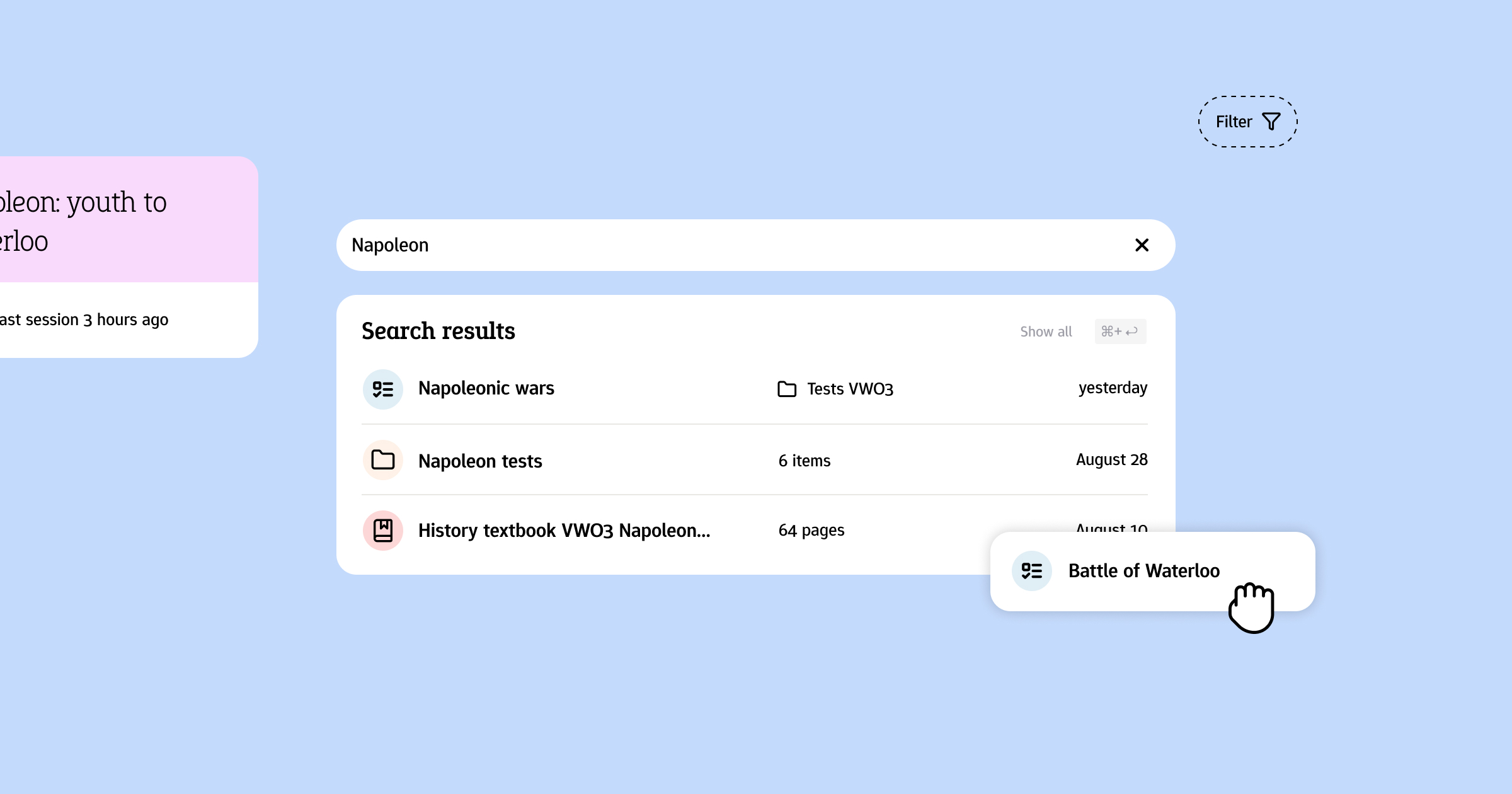
Examplary is made to be as simple as possible to get started with, but we also care a lot about enabling you to work as quickly as possible. We have various hidden features built in for our power users to make them move through Examplary as quickly as possible.
Universal search
Go to any test, practice space, source material or question bank item instantly by using the search bar at the top of the screen.
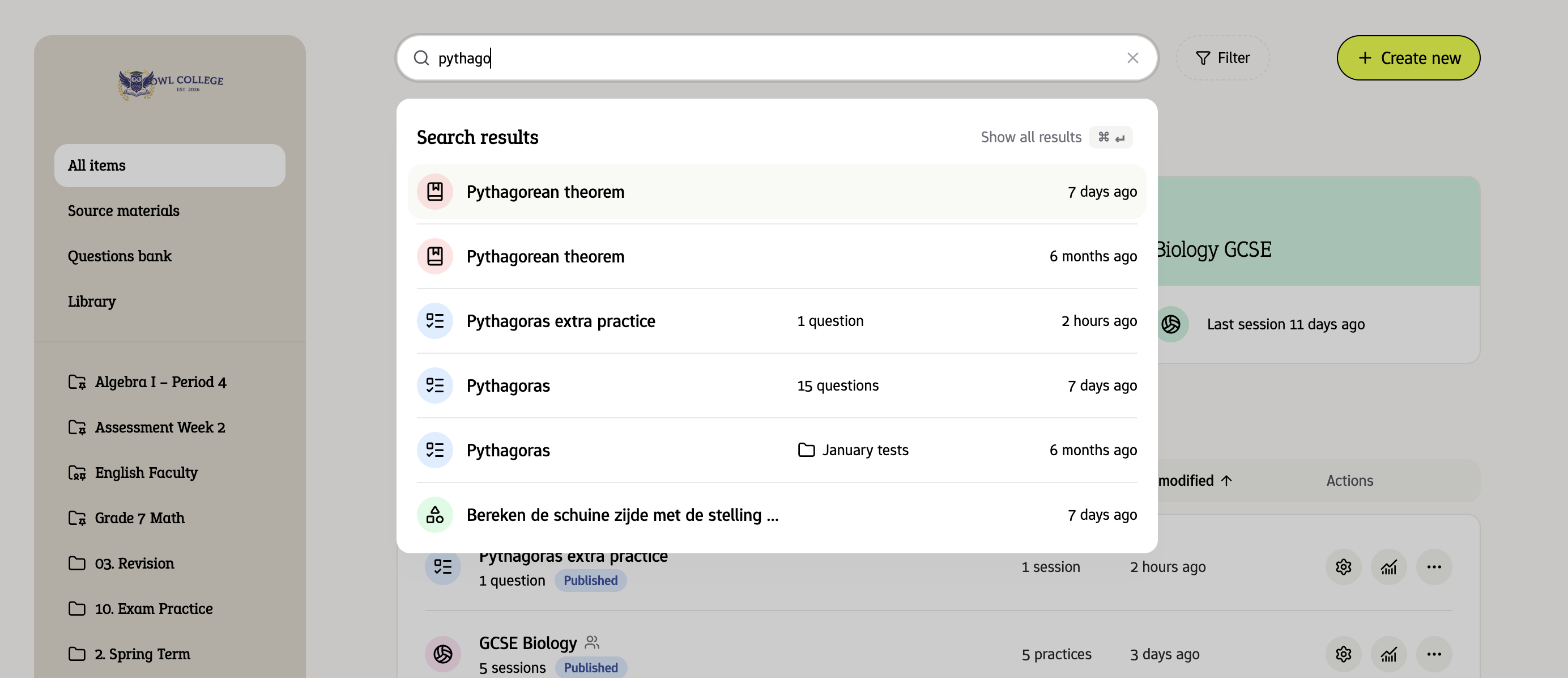
No matter what section you're in, this always will show all items you have access to across all of Examplary - both the ones you own, and items your colleagues have shared with you.
Want to be even faster? Press / (slash) on your keyboard to open the search bar, and then use the up and down arrow keys to navigate to the item you want to select. Press Enter to go to that item.
Drag and drop items
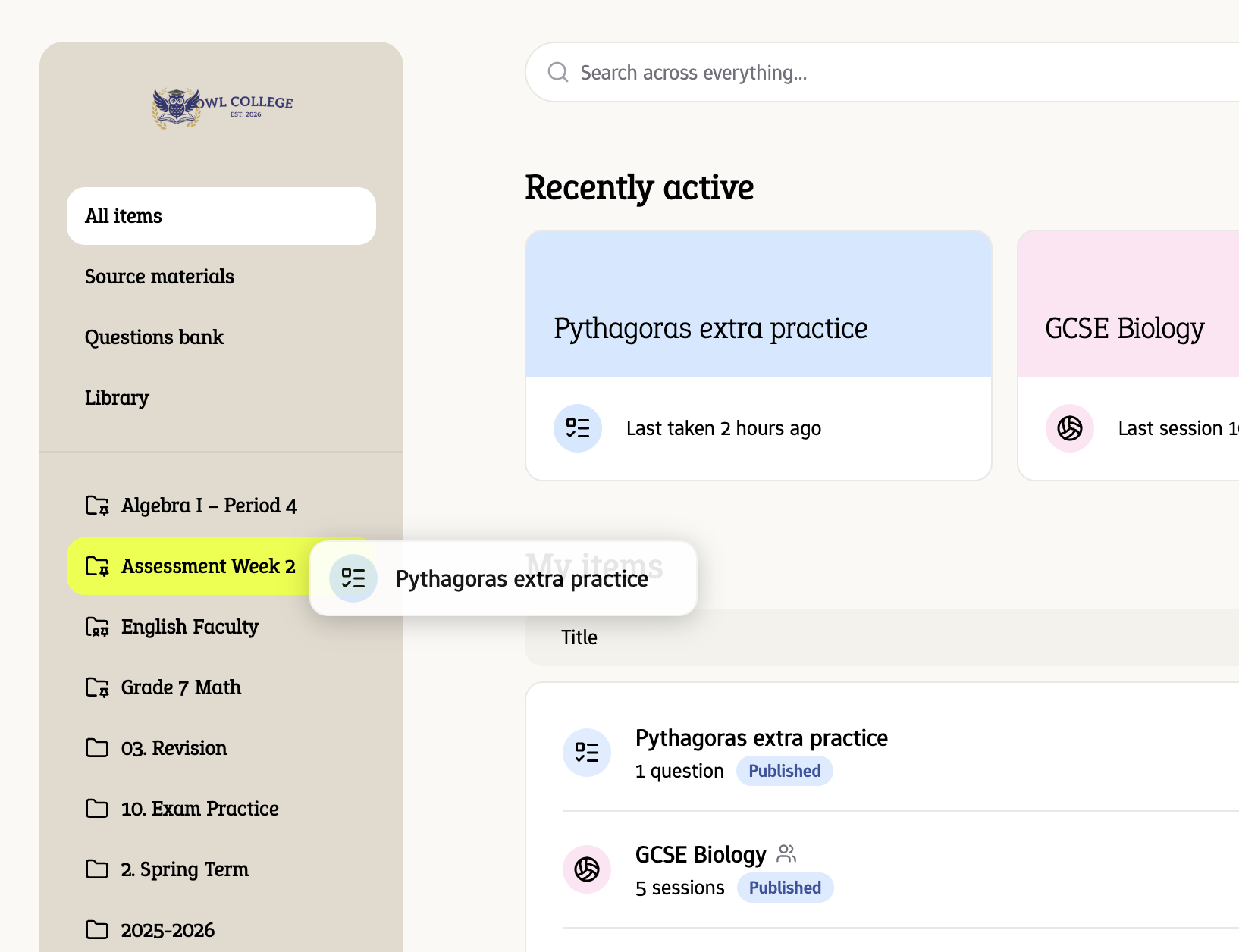
Did you know that you can drag a test or practice space into a folder? No need to use the context menu to move it.
Navigation shortcuts
To navigate through the different items in the sidebar, you can use the following keyboard shortcuts. They all start by typing the letter g, followed by another letter to go to that section:
ga– All itemsgs– Account settingsgm– Source materialsgq– Questions bankgl– Libraryg1,g2, etc. – Go to the first, second, etc. folder in the list
The shortcuts even work when you're not in the main screen of Examplary, so using g + a is a quick way to get back from the test editor to your items overview.
Quickly add questions
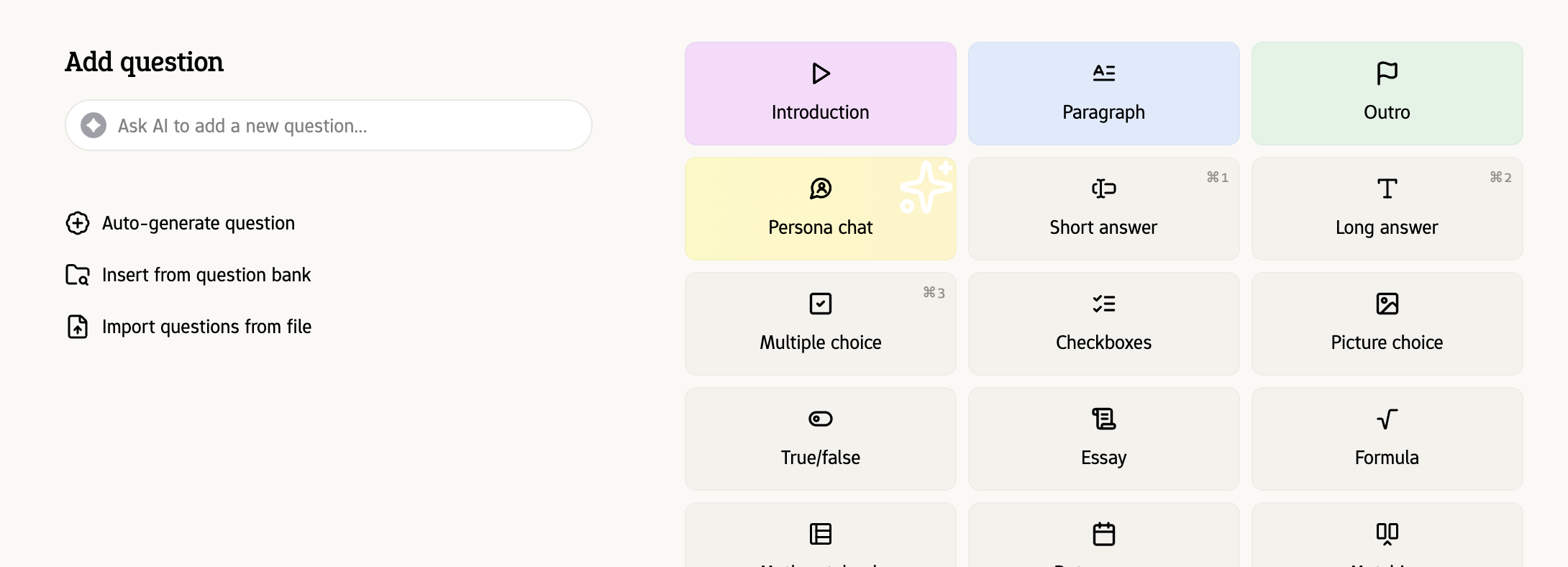
Some question types have a shortcut as well. For example, pressing Ctrl + 1 or ⌘ + 1 inserts a new 'short answer' question in the test editor.
These shortcuts are shown at the top right of the button for that question type:
Use the command panel
Press Ctrl + K or ⌘ + K to open the command panel. This is available in every screen in Examplary, and is a quick way to execute available commands in that screen.
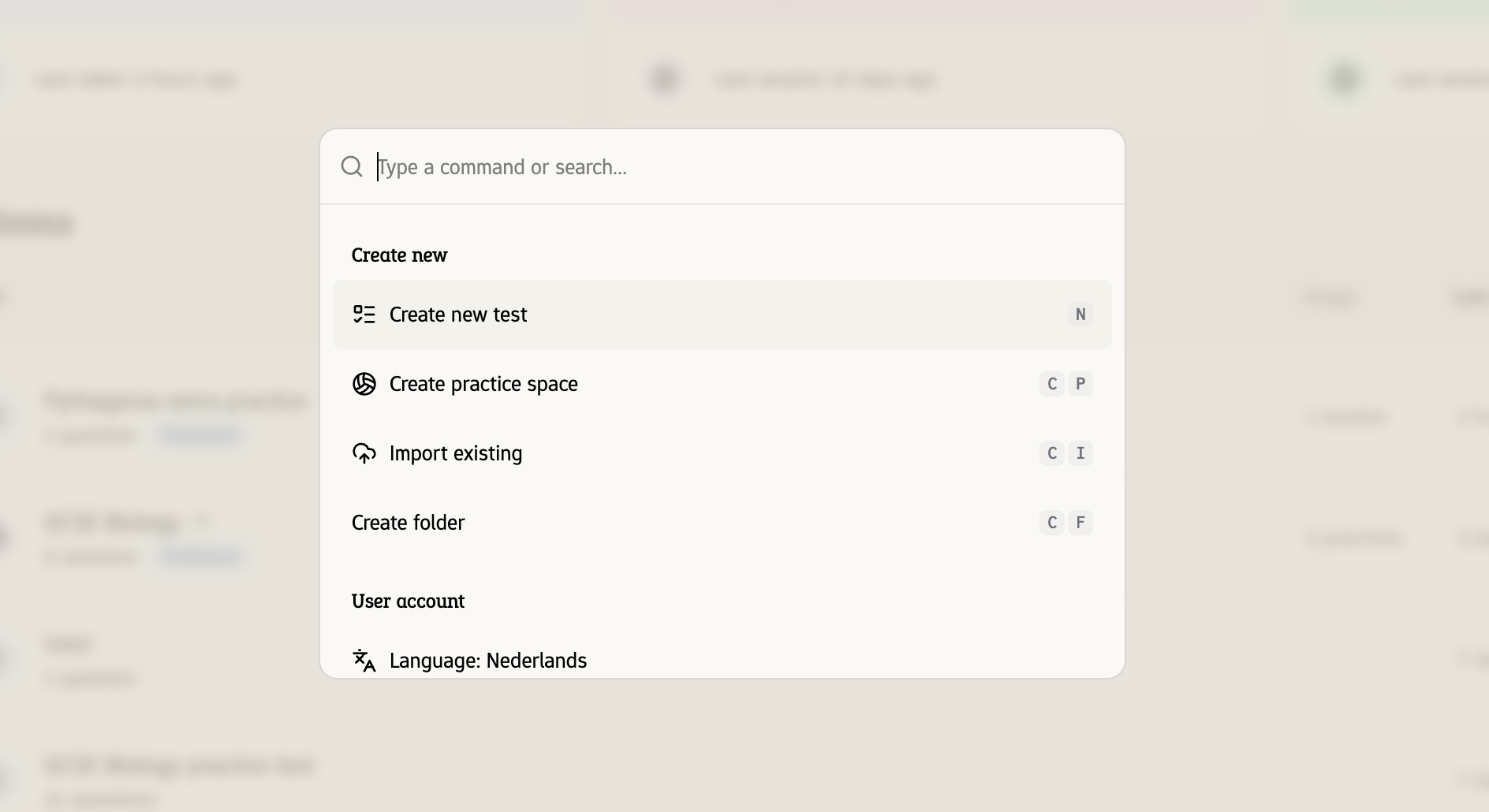
This is a quick way to add questions, switch tabs, move questions, and much more. You can also search for the same items here that are available in the universal search bar from before.
It's also a great way to discover even more keyboard shortcuts, which are displayed on the right of each command. For example, pressing Ctrl + Shift + E or ⌘ + Shift + E opens the settings panel in the test editor.