Examplary
  • Start for free

    What's new in Examplary

    Every new feature, improvement, and fix we ship, in chronological order.

    1. Export and print your rubrics

      You can now export any rubric from the rubric editor. Open a question, then click the options menu (⋯) in the rubric section to:

      • Print the rubric as a formatted overview
      • Download as Word to get a .docx file you can share or edit further
      • Copy to clipboard to paste the rubric directly into another document or email

      This makes it easier to share rubrics with colleagues, include them in paper-based assessments, or use them outside of Examplary.

    2. Organize users into groups

      You can now create groups of users directly from the dashboard. Add users by searching their name or email, or paste a list of addresses to invite everyone at once.

      Groups make it easy to assign the same test or practice space to a whole class, and in the future will allow you to filter results by group when you review them.

    3. Upload PDFs of student answers

      You can now upload a PDF of handwritten or scanned student answers directly from the results page. Examplary automatically matches each page to the right student and question, so you can start grading straight away.

      This makes it much easier to grade paper-based tests, allowing you to scan in bulk, rather than taking a photo of each page with your phone.

    4. Introducing Practice Spaces

      Introducing Practice Spaces

      Practice spaces are now available to every Examplary user. After a few months in beta, we've opened them up to all accounts.

      Practice spaces let your students work through a subject at their own pace. Examplary generates questions from the source materials you provide and adapts them based on each student's progress.

      Use it for homework, exam preparation, or any time you want students to build mastery without the pressure of a test.

    5. Scan handwritten answers with your phone

      For paper-based tests, you can now scan student answers using your phone. Take a photo of each page, crop the answer area, and Examplary will read the handwriting for you.

      Scanned answers flow straight into the normal results view, so you can review, adjust, and grade them just like any online answer.

    6. Redesigned overview of your tests

      The exams overview has been redesigned to show more at a glance: who you've shared each test with, how many students have started, and whether the test is still a draft.

      Sharing and filtering have their own indicators, so you can quickly find the test you're looking for. You can now also filter on any custom fields your organization has set up.

    7. A new home page for students

      Students now have a dedicated home page when they sign in to Examplary. They'll see their current practice spaces and upcoming tests, filtered so they only see what applies to them.

      This replaces the old link-only flow, and makes it easier for students to find their way back to work they've already started.

    8. Custom branding for your school

      You can now upload your school or organization's logo and colours to make the Examplary experience feel more familiar for your students and teachers.

      This feature is available on our Enterprise plan.

    9. Build your own scoring rubrics

      We've rebuilt the rubric editor from the ground up. You can now define multiple criteria per question, each with its own levels and points, and the AI uses that rubric when it grades open answers.

      Similarly, you can ask Examplary AI to create a rubric for you based on the question you've created, and any other instructions or uploaded documents.

      This gives you much finer control over how open questions are scored, and makes grading more transparent for your students.

    10. Export your tests in QTI 3 format

      We’ve added a new export method: QTI 3.

      This is the latest international standard for exchanging tests and questions. You can now export your created tests and easily import them into any other learning platform that supports QTI 3.

    11. Give feedback on the entire test

      New options for feedback! You can now choose to give feedback on the entire test, instead of only per question. The AI can generate a summarized advice for the student, based on all answers. We also added a clear badge to see which questions already have feedback.

    12. Require passcode for online assessments

      Require passcode for online assessments

      It is now possible to require your students to enter an passcode before they can start the online test session.

      Examplary automatically generates a 5-digit passcode, but teachers can replace it with their own password for the test.

    13. Save questions in your questions bank

      Save questions in your questions bank

      You can now save questions in the question bank via the options menu within the question editor. You can then easily reuse them between tests!

    14. Improved flow for creating tests

      Improved flow for creating tests

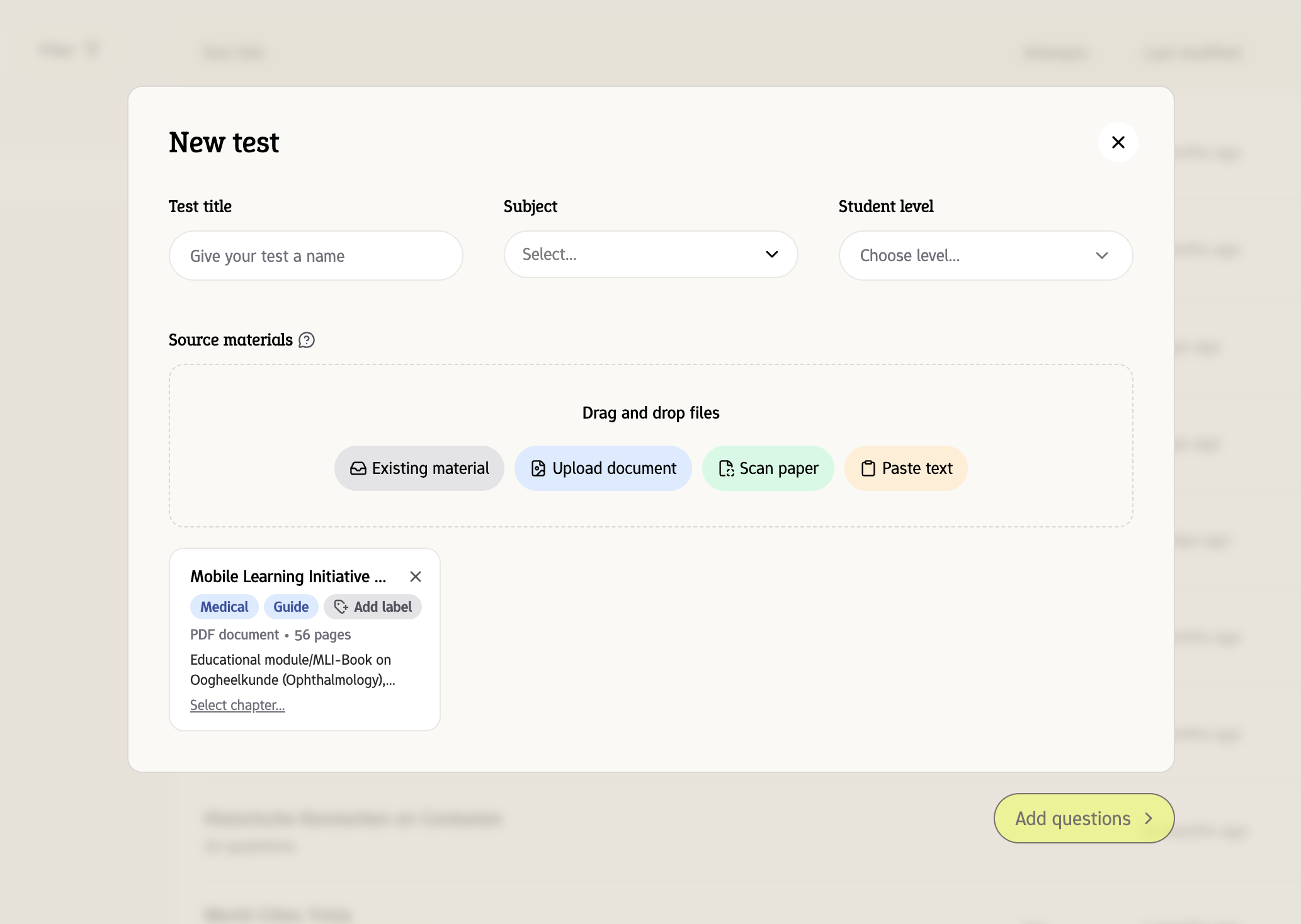
      We have made creating and importing new exams much easier and faster.

      The new, step-by-step modal guides you through the process, from adding source materials (text, link, file, or scan) to setting the basic information. It’s now more intuitive to start working with your learning materials immediately.

    15. New TIMSS default taxonomy

      We’ve added the TIMSS taxonomy, an internationally recognized framework for mathematics and science education.

      When creating or editing an exam, you can now use this taxonomy to more accurately specify the proficiency level and cognitive skills you want to assess. This results in even more relevant and well-structured questions for your students.

    16. Set your student level for better questions

      Questions for a primary school class are very different from those for high school seniors. We get it.

      When creating an exam, you can now select your students’ level (e.g., Grade 7, High School Senior). The AI uses this information to perfectly adjust the language, complexity, and content of the generated questions to your class. This ensures much more accurate results.

    17. Better support for mathematical formulas

      We have improved support for adding mathematical formulas in the question editor. You can now quickly and easily include complex equations and formulas in your exams. This makes it easier to create exams for STEM subjects.

    18. New central location for source material management

      New central location for source material management

      We have created a central place to manage all your source materials. You can now easily reuse previously uploaded source materials for multiple tests.

      This makes test creation much faster, since the source materials don’t need to be analyzed again.

    19. Select specific parts of source material

      You now have the option to select a specific part or ‘slice’ of your source material and rename it. This is useful if you want to generate questions based on just one chapter or a few pages of a longer document.

    20. New settings screen when generating an exam

      The settings for generating a new exam have been brought together in one clear dialog window. Here you can adjust the total exam duration using a handy slider, and select which question types the AI is allowed to use.

    21. Statistical analysis of your exam results

      Statistical analysis of your exam results

      Deep insights into your exams! We’ve added a new table to the results analysis. Here you will find statistics such as the p’-value, allowing you to better assess the quality of your questions and the performance of your students.

    22. Export test results to Excel

      You can now export your test results to an Excel file (.xlsx) instead of a CSV file. This makes it easier to analyze the data and share it with colleagues.

    23. Grading schemes for tests

      Grading schemes for tests

      You can now select how your test should be graded. Use any of the pre-defined grading schemes, or build a custom one.

    24. Direct feedback for students

      Direct feedback for students

      You can toggle ‘direct feedback’ for any (practice) test, so that Examplary gives immediate feedback to a student’s answer based on the learning materials.

    25. Support for Safe Exam Browser now available

      Support for Safe Exam Browser now available

      Safe Exam Browser is a web browser environment to carry out e-assessments safely. The software turns any computer temporarily into a secure workstation.

      For any Examplary test, you can require the use of Safe Exam Browser and set limitations on what a student can do whilst they’re taking the test.

      You can still send the link to the student as per usual – they’ll be shown a message with instructions to download Safe Exam Browser if they open the link in a normal browser.

    26. Launch Examplary tests from your LMS

      Examplary now supports LTI resource selection. That means teachers using a learning management system that speaks LTI can pick an Examplary test directly from within their LMS and embed it into their course.

    27. See final grades in the sessions list

      Once every answer in a session is graded, Examplary now calculates the student's final grade and shows it directly in the sessions list, based on your grading scheme.

      This saves you the step of opening each session just to see how a student did overall.

    28. A new Developers page

      We've added a dedicated Developers page to your account settings. Here you'll find your workspace API key, links to our developer documentation, and a separate page to enable or disable question types in your workspace.

      This is the starting point for building custom integrations and question types on top of Examplary.

    29. Import Moodle quizzes

      Moving from Moodle? You can now import a Moodle quiz XML file directly into Examplary. Questions, answers, and metadata come across in one go, so you don't have to rebuild your question bank from scratch.

      From there, you can edit, reuse, and combine the imported questions with anything else in Examplary.

    30. Upload larger source documents

      We've bumped the file size limit for source materials up to 20 MB, and we now extract the text from large PDFs before handing them to the AI.

      This means you can feed Examplary textbooks, chapter-length readings, and long reports where you'd rather provide the whole thing than pick out a section.

    31. Organize your tests in folders

      You can now group your tests into folders. Create a folder per class, per term, or per subject - whatever keeps your workspace tidy.

      Move any test between folders with the "Move to folder" option in its menu.

    32. Print your tests on paper

      Sometimes paper is still the right tool. You can now export any test as a PDF, ready to print, in either A4 or Letter size.

      Use the print preview to check the layout before you export.

    33. Attach files and images to questions

      You can now drag and drop images and files directly into the question editor. Images are embedded inline, and other files appear as clickable attachments that students can open while they take the test.

      This makes it much easier to build questions around source materials you already have — a diagram, a passage of text, or a reference document.

    34. Introducing conversational questions

      Conversational questions are a new question type where students have a short dialogue with AI about a topic, instead of giving a single written answer.

      You write a prompt that tells the AI how to interact with the student, and completion criteria that define when the conversation is done. The AI then asks follow-up questions to guide the student through the conversation.