Examplary
  • Start for free

    What's new in Examplary

    Every new feature, improvement, and fix we ship, in chronological order.

    1. Rename a student from test results

      Sometimes a student's name ends up wrong on a set of results — a typo when they were added by hand, or a name that just needs tidying up before you share or export the grades.

      You can now rename a student directly from their results. Open the options menu (⋯) next to a student in the results view, choose "Rename student", and enter the corrected name.

      The change applies everywhere that session shows up, and updates instantly for any colleagues looking at the same results.

      Students who took the test while signed in to their own account keep the name from that account, so those stay in sync automatically and can't be renamed by hand.

    2. Share whole folders with your team

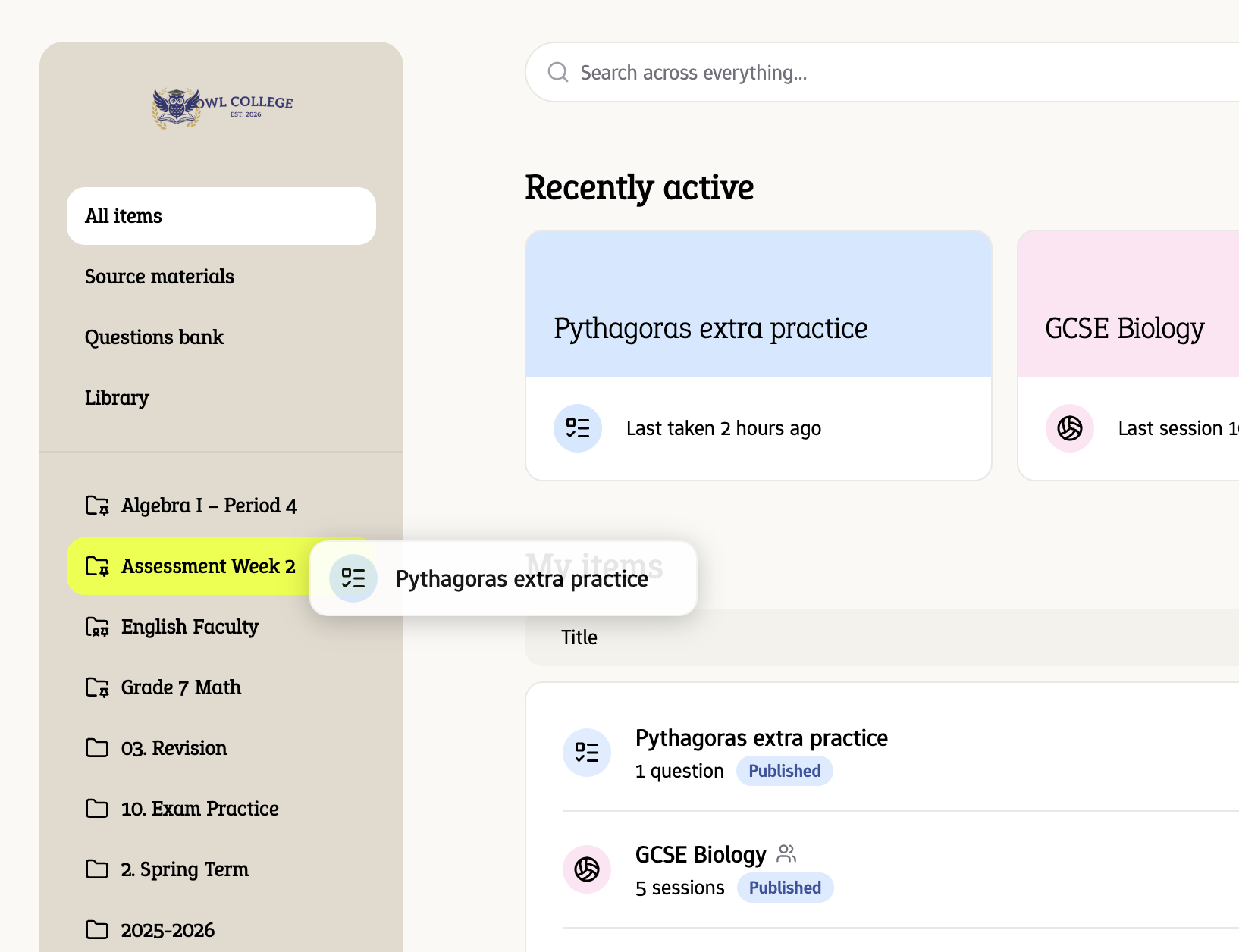
      You can already organize your tests into folders. Now you can share an entire folder with colleagues or groups, and everything inside it is shared automatically.

      Every test and practice space in a shared folder inherits the folder's access, so you no longer have to invite people to each item one by one. Add a new test to the folder later and the same people can see it right away.

      Pick the role each person or group gets - viewer, editor or manager - just like when sharing a single test. You can still share individual items on top of what they already inherit from the folder.

      Open the menu on any folder and choose "Share…" to get started. Shared folders show an icon so you can tell at a glance what your team can access, and we'll warn you before you move a test out of a shared folder in case someone would lose access.

    3. A clearer toolbar for your tests

      The toolbar at the top of every test now looks and works the same whether you're editing questions, setting up the print version, or looking through results — so the buttons you need are always in the same place.

      The "Publish as…" button has become a single Share menu. Open it to publish a test as a practice test or a graded test, copy its link to hand out, jump straight to the publishing settings, or unpublish it again — all from one place.

      Undo and redo stay with you while you're editing, and settings are always one click away. Over in the results view, exporting your results now has its own clear button, right next to the option to add results by hand.

    4. Schoolyear integration & timed access

      Schoolyear integration & timed access

      We are now integrated with Schoolyear, which allows creating a safe and secure environment for students to take assessments. This is similar to Safe Exam Browser, but with the added benefits of being able to use it on Chromebooks, having a live dashboard to monitor students, and much more configuration options. You can read more about it in our Schoolyear integration guide.

      This release also adds the ability to set a start and end date for a test, allowing you to decide when students can access it.

      Also in this release:

      • More consistent custom links for tests and practice spaces
      • New onboarding videos for Dutch teachers
      • Improvements to audit logging, with more authentication events being logged
      • New ways for custom question types to automatically grade answers
    5. Ignore capitalization and spacing when auto-grading

      When you grade a question against a list of exact answers, small differences in capitalization or spacing shouldn't cost a student points.

      Questions using the "Exact values" scoring type now have an "Ignore whitespace and capitalization" toggle. Switch it on, and a student who writes "New York" instead of "new york", or slips in an extra space or line break, still gets full marks. Their answer is matched against your expected values regardless of casing and spacing.

      This makes auto-grading short-answer and fill-in-the-blank questions far more forgiving, so you spend less time fixing up answers that were essentially right.

    6. Security improvements across Examplary

      Over the past couple of weeks we've shipped a batch of behind-the-scenes security improvements to keep your account, your students, and your test data better protected.

      Stronger sign-in protection. Sign-in codes are now locked automatically after several incorrect attempts, so nobody can keep guessing their way into an account. Failed sign-in attempts are also recorded in the audit log, giving Workspace Admins and Owners clear visibility into suspicious activity.

      Tighter control for connected apps. Apps you connect to Examplary now only ever receive the exact permissions they were granted — never more. This makes third-party integrations safer by default.

      Safer file uploads. We hardened how uploaded files are handled so that documents and images shared on the platform can't be misused to run unwanted content in someone else's browser.

      These changes require no action on your part — they're already live for everyone.

    7. Keep questions on one page when printing

      Nobody wants a question split awkwardly across two pages.

      The print view now has a "Keep questions on one page" toggle. When enabled, each question is kept together as a single block and won't break across a page boundary when you export your test as a PDF.

    8. Reusable prompt templates for AI instructions

      When writing AI instructions for grading feedback, exam context, or practice spaces, you'll now see a "Templates" button next to the input field. Click it to open a template picker where you can browse and apply a curated selection of ready-made prompts from Examplary.

      You can also save your current prompt as a named template for later reuse. Once saved, it shows up in the template picker alongside the built-in Examplary templates, so you can quickly apply it to any new test or practice space.

    9. Audit logs for Examplary for organizations

      Examplary for organizations now includes a complete audit trail of all significant actions taken across the platform. Logins, exam session events, grading decisions, user and permission changes, API key rotations, and billing actions are all recorded with a timestamp, the actor who performed them, and a before/after snapshot of what changed.

      Workspace Admins and Owners can query the audit log via the API using the audit-logs:read scope — filtering by date range, actor, or specific resource. Any date range can also be exported as an ND-JSON file, making it straightforward to integrate with your existing security tooling or store logs for compliance purposes.

    10. Grading comments and highlighting

      Grading comments and highlighting

      One grading flow we heard teachers ask for was the ability to leave comments and highlight specific parts of a student's answer when grading.

      This is especially useful for long essays, or grading exams with your team, where lots of discussion takes place around how to grade a specific answer.

      You can now leave comments by selecting any part of a student's answer, and clicking the comment button. This will open a comment box where you can leave your feedback.

      You can also see all comments left by you and your colleagues in the grading sidebar, with the ability to reply and mark comments as resolved.

      Also in this release:

      • We've also introduced comments in the test editor description field. Simply select some text to leave a private note only visible to you and your colleagues. This is perfect for leaving reminders or notes about specific instructions or information in the test description.