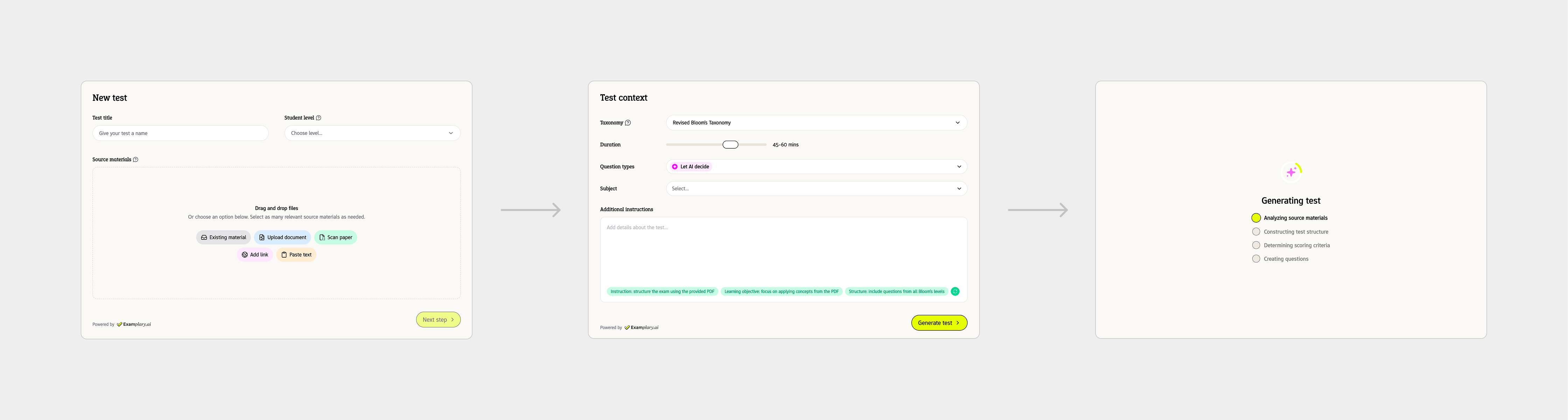
Using the Examplary AI exam generation flow, you can let users of your application use AI to generate questions on a specific subject or a set of source materials.
Presets
Presets allow you to pre-configure certain options for the embed session, so that when your users open the embed, they see a tailored experience. Every key within presets is optional, but the presets object itself is required — pass "presets": {} if you don't want to pre-configure anything.
| Key | Type | Description |
|---|---|---|
name | string | The name of the exam. Plain text. |
subject | string | The subject of the exam. Plain text. |
studentLevel | string | The difficulty level of the exam. Expects a student level ID from /student-levels. |
intendedDuration | string | The intended duration of the exam. One of "15-30 minutes", "30-45 minutes", "45-60 minutes", "60-90 minutes". |
taxonomyId | string | The ID of the taxonomy to use for the exam, from /taxonomies. |
language | string | The language code for the exam (e.g. "en" for English). Defaults to the user's locale. |
sourceMaterialIds | string[] | An array of source material IDs to pre-select for the exam. |
allowedGenerationQuestionTypes | string[] | An array of question type IDs to limit the question generation options to. |
context | string | Additional context or instructions for the exam generation. Plain text. |
hideSubject | boolean | Whether to hide the subject field in the exam generation UI. Defaults to false. |
hideStudentLevel | boolean | Whether to hide the student level field in the exam generation UI. Defaults to false. |
hideDuration | boolean | Whether to hide the duration field in the exam generation UI. Defaults to false. |
hideTaxonomy | boolean | Whether to hide the taxonomy field in the exam generation UI. Defaults to false. |
hideQuestionTypes | boolean | Whether to hide the question types field in the exam generation UI. Defaults to false. |
Example
1. Create an Examplary user for your user
To make sure we can save personal preferences and source materials uploaded by the user to their specific account, and can later allow them to reference these personal details, we require creating a user account in your workspace for each of your users.
{
  "email": "my-user@example.com",
  "name": "My User"
}
Store the returned user ID in your system to use with any future embed sessions for that user.
2. Create an embed session
Call the Examplary API to create a new embed session. You can configure presets for the exam, as well as theme options.
The actor field should contain the ID of the Examplary user account you created for this customer.
You can either specify a returnUrl or an allowedOrigin, based on how you want to be notified when generation is completed.
{
  "flow": "generate-exam",
  "actor": "user_423r9j3r0jeddJA...",
  "presets": {
    "subject": "Mathematics"
  },
  "theme": {
    "primaryColor": "#4f46e5",
    "locale": "en"
  },
  "metadata": {
    "myUniqueIdentifier": "abc1234"
  },
  "returnUrl": "https://app.example.com",
  "allowedOrigin": "https://app.example.com"
}
This returns a response that looks like this:
{
  "id": "embed_session_55S843D7HfNfs9RY48PoTprXnRcz2Vw8Crst64UYrBnz...",
  "status": "pending",
  "embedUrl": "https://app.examplary.ai/embeds/55S843D7HfNf...",
  "flow": "generate-exam",
  "actor": "user_423r9j3r0jeddJA...",
  "createdBy": "user_9pQr82jXd0dJ...",
  "enabledResponseModes": ["return_url", "post_message"],
  "createdAt": "2025-12-09T16:52:52.120Z",
  "expiresAt": "2025-12-16T16:52:52.120Z",
  "presets": {
    "subject": "Mathematics"
  },
  "outputs": {},
  "theme": {
    "primaryColor": "#4f46e5",
    "locale": "en"
  },
  "metadata": {
    "myUniqueIdentifier": "abc1234"
  }
}
3. Lead the user to the embed URL
You can either redirect the user directly to the URL, or display it in an iframe.
The latter might be better for the user experience, especially when displayed as a modal. This also allows you to listen to status updates in real time,
through the postMessage() API.
const embedUrl = "https://app.examplary.ai/embeds/55S843D7HfNf...";

iframe.src = embedUrl;

window.addEventListener("message", (event) => {
  // Make sure the message is coming from a trusted origin
  if (event.origin !== new URL(embedUrl).origin) return;

  // Handle the message
  const { type, status, outputs } = event.data;
  if (type === "examplary:embed-status-update") {
    if (status === "started") {
      // Fired as question generation progresses — outputs.questionGenerationStatus
      // reflects the current generation step (e.g. "generating_outline",
      // "generating_questions"). Useful for showing a progress indicator.
      console.log("Generation in progress:", outputs.questionGenerationStatus);
    } else if (status === "completed") {
      const examId = outputs.examId;
      console.log("Exam generation completed! Exam ID:", examId);
    }
  }
});
If you're using redirects, you can expect a redirect to your specified returnUrl on success, with the full outputs object and the embed session ID folded into the query string: ?status=completed&embedId=embed_session_55S8...&examId=exam_dj8948hf98hf43&questionGenerationStatus=completed
If neither of these options work for you, you may also poll the Examplary API for status updates:
{
  "id": "embed_session_55S843D7HfNfs9RY48PoTprXnRcz2...",
  "flow": "generate-exam",
  "status": "completed",
  "createdBy": "user_9pQr82jXd0dJ...",
  "outputs": {
    "examId": "exam_dj8948hf98hf43",
    "questionGenerationStatus": "completed",
  },
  // ...other fields omitted, same shape as the create response above
}
4. Get exam contents
Once the question generation has completed, you can use the API to retrieve your generated questions.
In Examplary's normal format:
GET /exams/{examId}Or as a QTI package:
POST /exams/{examId}/export/qti3-zip5. Cleanup
The embed session will expire automatically after 7 days, but because it gives some limited access to your account, you might want to remove it manually:
DELETE /embed-sessions/{embedSessionId}You can also delete the generated exam once you don't need it anymore:
DELETE /exams/{examId}