All embed session flows require a theme object in the POST /embed-sessions request body to customize the appearance of the embedded UI. Every key within it is optional, so pass "theme": {} if you don't want to customize anything.
| Key | Type | Description |
|---|---|---|
primaryColor | string | A CSS hex color code for primary UI elements (buttons, highlights). Accepts #RRGGBB or #RGB format. |
backgroundColor | string | A CSS hex color code for the background of the embed. Accepts #RRGGBB or #RGB format. |
locale | string | A 2-character locale code (e.g. en, nl). Unsupported codes fall back to English. |
strings | object | An object containing string overrides for the embed session. See String overrides below. |
Example:
{
  "primaryColor": "#4f46e5",
  "backgroundColor": "#f9fafb",
  "locale": "en"
}
The "unsupported codes fall back to English" behavior above only covers codes the platform doesn't recognize. Omitting locale entirely is different for the take-exam and practice-space-student flows: instead of defaulting to English, the embed's UI automatically matches whatever language the exam or practice space itself is set to. Set locale explicitly if you need the UI language to stay independent of the content's language.
String overrides
You might want to update labels in the UI. To do so, you can specify a strings object in the theme object. The keys in this object correspond to the labels in the UI, and the values are the strings you want to display.
Example:
{
  "theme": {
    "strings": {
      "account.attributes.student-level-name": "Candidate level",
      "account.attributes.subject-name": "Assessment field"
    }
  }
}
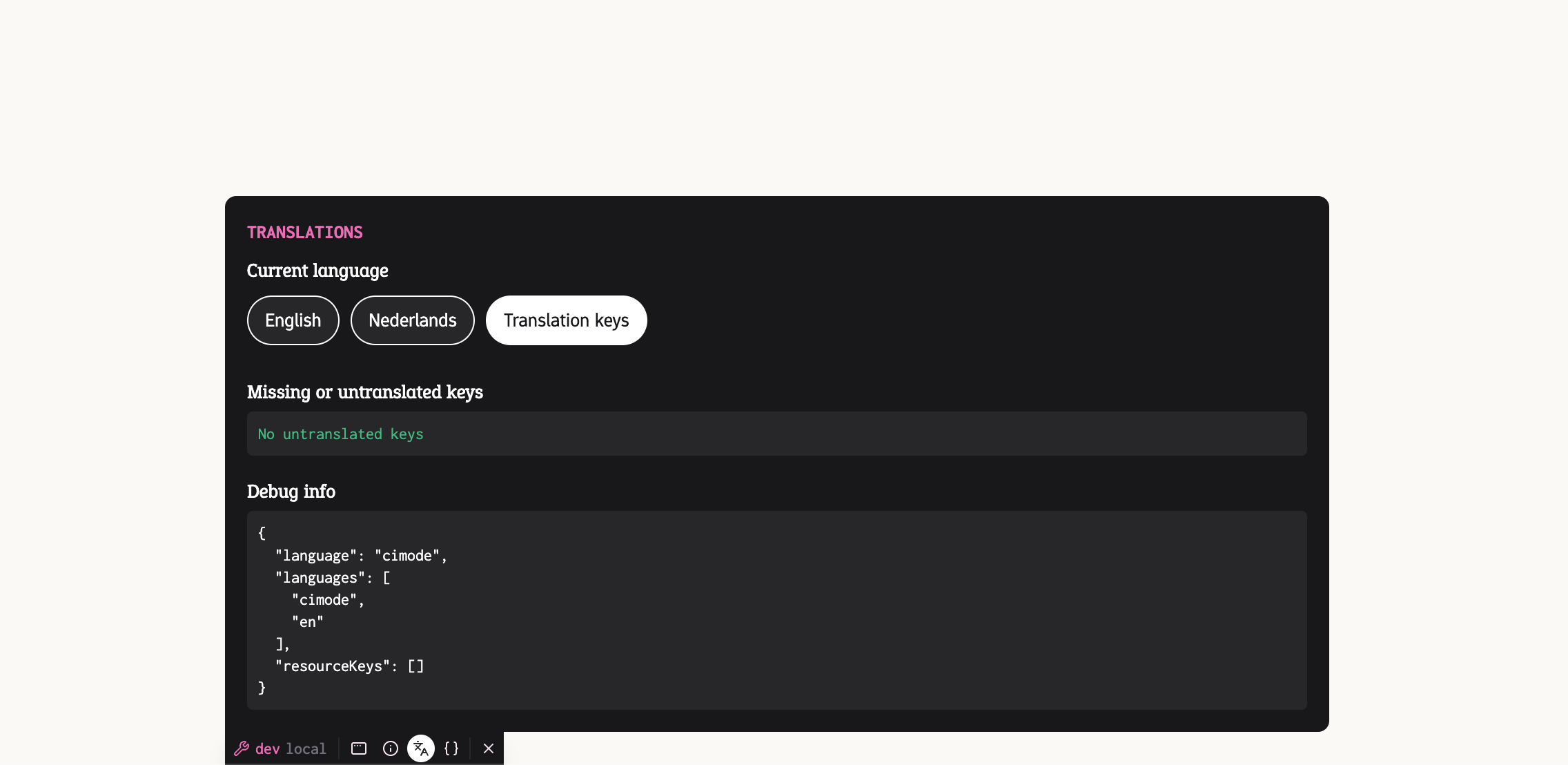
To find the name of a particular string, you can use the Examplary dev tools. Reveal them by pressing Shift + Control + Tilde.
Then press the 'Language' icon, and switch to 'Translation keys'.