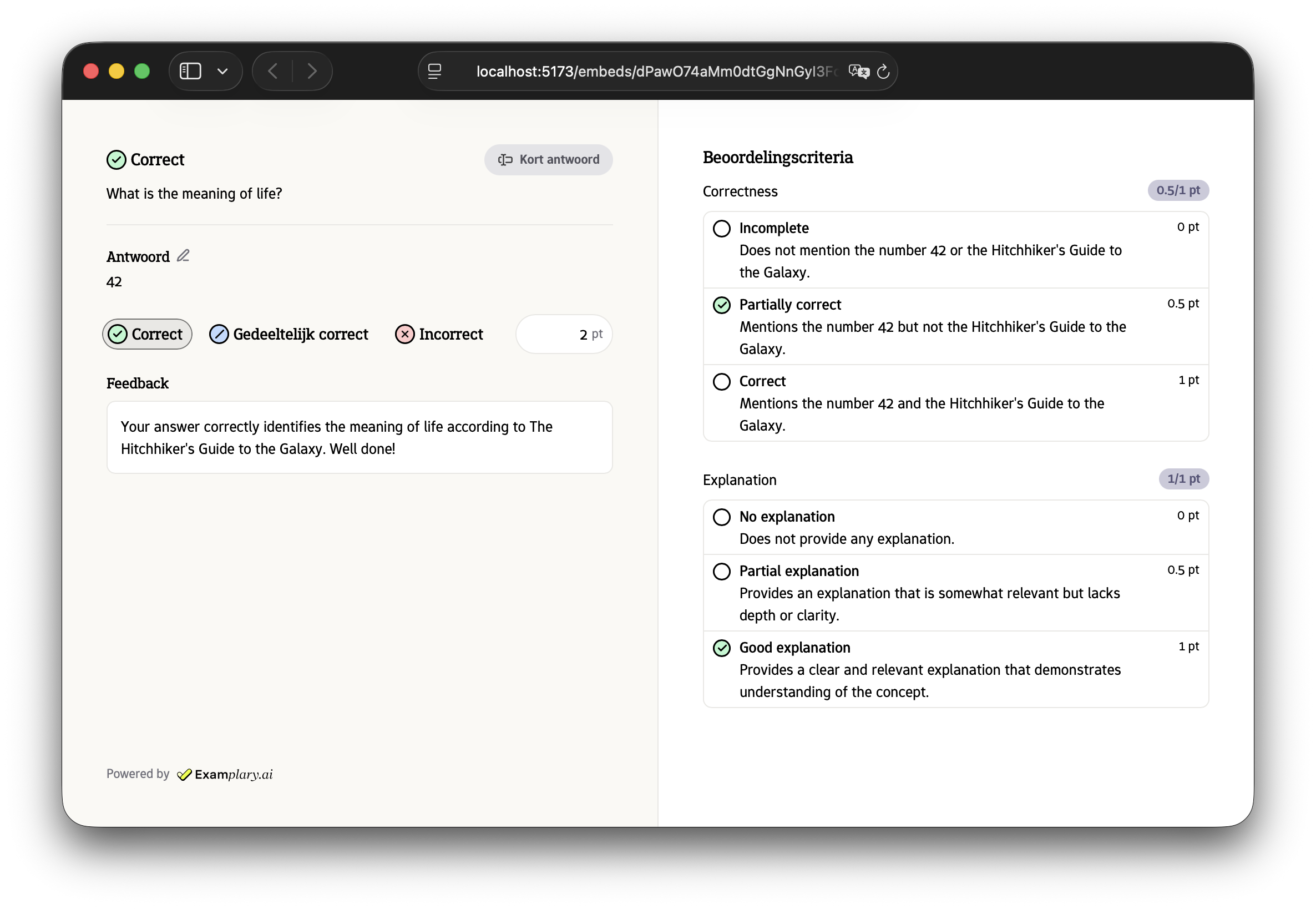
Using the Examplary AI grade answer flow, you can let users of your application use AI to grade a single answer on a specific subject or a set of source materials.
Presets
| Key | Type | Description |
|---|---|---|
examId | string | The ID of the exam that contains the question to be graded. Must start with exam_. Required. |
sessionId | string | The ID of the assessment session that contains the answer to be graded. Must start with ses_. Required. |
questionId | string | The Examplary ID of the question to be graded, or any external ID you assigned to it. Required. |
hideScoringCriteria | boolean | Whether to hide the scoring criteria in the grading UI. Defaults to false. |
Example
1. Create an Examplary user for your user
To make sure we can save personal preferences and source materials uploaded by the user to their specific account, and can later allow them to reference these personal details, we require creating a user account in your workspace for each of your users.
{
  "email": "my-user@example.com",
  "name": "My User"
}
Store the returned user ID in your system to use with any future embed sessions for that user.
2. Create an exam
Before you can use the grade answer flow, you need to have an exam and assessment session that the user can reference when grading the answer.
Let's first create the exam (API reference):
{
  "name": "Book review",
  "subject": "English Literature",
  "studentLevel": "us_undergraduate",
  "questions": [
    {
      "id": "my_question_1",
      "type": "single-line-text",
      "title": "What is the meaning of life?",
      "description": "Give a short answer to the ultimate question.",
      "settings": {},
      "scoring": {
        "rubricType": "analytical",
        "criteria": [
          {
            "id": "c1",
            "title": "Correctness",
            "levels": [
              {
                "id": "c1l1",
                "title": "Incomplete",
                "description": "Does not mention the number 42 or the Hitchhiker's Guide to the Galaxy.",
                "points": 0
              },
              {
                "id": "c1l2",
                "title": "Partially correct",
                "points": 0.5,
                "description": "Mentions the number 42 but not the Hitchhiker's Guide to the Galaxy."
              },
              {
                "id": "c1l3",
                "title": "Correct",
                "points": 1,
                "description": "Mentions the number 42 and the Hitchhiker's Guide to the Galaxy."
              }
            ]
          }
        ]
      }
    }
  ],
  "permissions": [
    {
      "actor": "{userId}",
      "role": "editor"
    }
  ],
  "metadata": {
    "my_service_internal_id": "abc1234"
  }
}
The actor ID above should be the Examplary user ID that you created for this customer. This is important, as the user needs to have access to the exam to be able to grade it.
You can specify an id on each question and use that same value to reference the question in subsequent steps.
3. Add an assessment session
Next, you'll want to import answers for a specific student, so they can be reviewed (API reference):
{
  "studentName": "John Doe",
  "answers": [
    {
      "question": "my_question_1",
      "value": "42"
    }
  ],
  "autoGrade": true
}
4. Create an embed session
Call the Examplary API to create a new embed session. You can configure presets for the question, as well as theme options.
The actor field should contain the ID of the Examplary user account you created for this customer.
Specify an allowedOrigin to receive postMessage updates as the user interacts with the grading UI. This flow has no "completion" event — each time the grade changes, the session emits another started update — so returnUrl has no effect here; use allowedOrigin/postMessage or poll the exam session for the latest answer instead.
{
  "flow": "grade-answer",
  "actor": "{userId}",
  "presets": {
    "examId": "{examId}",
    "sessionId": "{sessionId}",
    "questionId": "my_question_1"
  },
  "theme": {
    "primaryColor": "#4f46e5",
    "locale": "en"
  },
  "metadata": {
    "my_service_internal_id": "abc1234"
  },
  "allowedOrigin": "https://app.example.com"
}
The response is the new embed session. Two of its fields matter for the next steps: embedUrl, the page to show your user, which stays valid until the session's expiresAt, and id, to look up the session later.
5. Lead the user to the embed URL
You can either redirect the user directly to the URL, or display it in an iframe.
The latter might be better for the user experience, especially when displayed as a modal. This also allows you to listen to status updates in real time, through the postMessage() API.
const embedUrl = "https://app.examplary.ai/embeds/55S843D7HfNf...";

iframe.src = embedUrl;

window.addEventListener("message", (event) => {
  // Make sure the message is coming from a trusted origin
  if (event.origin !== new URL(embedUrl).origin) return;

  // Handle the message
  const { type, status, outputs } = event.data;
  if (type === "examplary:embed-status-update") {
    console.log("Graded answer update:", outputs);
  }
});