Every organization eventually needs to answer a simple question: who did this, and when? Maybe a grade changed and nobody remembers approving it. Maybe a student disputes their result. Maybe you need to confirm who removed a colleague's access last term.
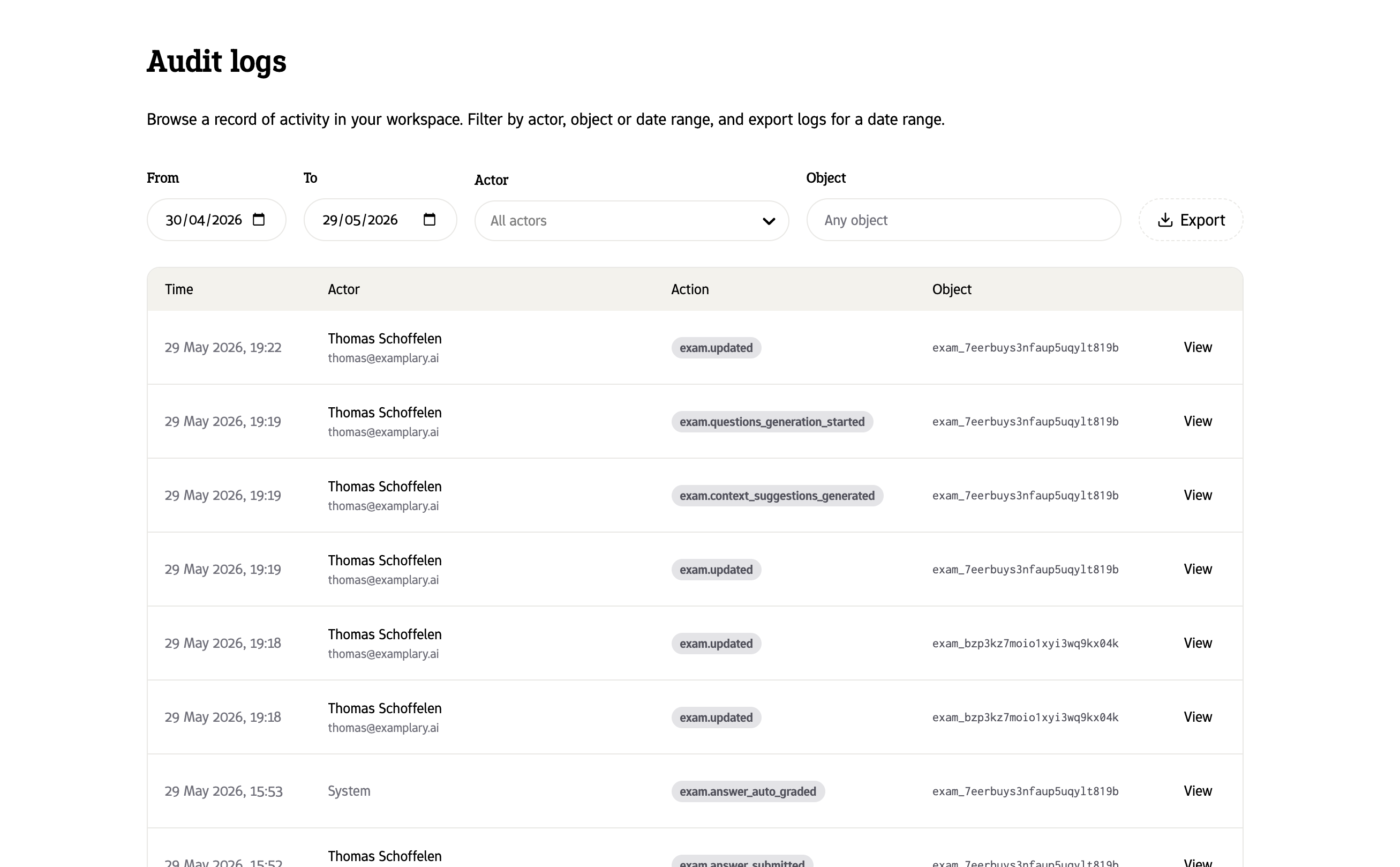
Examplary keeps a detailed audit log to answer exactly these questions. It's a running history of the important actions taken in your organization, kept for the long term, and searchable when you need it.
Audit logs are available on the Examplary for organizations plan. If you're interested in upgrading, contact us via hi@examplary.ai.
This guide explains what is recorded, how to find it, and how to use it as evidence.
What an audit log is
Think of the audit log as a tamper-resistant diary of your organization. Whenever someone does something that matters — signs in, changes a grade, removes a user, exports a test — Examplary writes a new entry.
Two things make this diary trustworthy:
- It's automatic. Entries are written by the system as actions happen. Nobody has to remember to record anything.
- It's append-only. Entries can't be edited or deleted after the fact, not even by an administrator. The log only ever grows, so what you see is what actually happened.
What gets recorded
For every event, Examplary captures the full story around it:
- Who — the person's name, email, and their role at the time (Owner, Admin, Teacher, or Student).
- What — the action that was taken, recorded as a short code such as
exam.answer_graded(we explain how to read these below). - When — the exact date and time.
- What it affected — the specific test, user, or resource involved.
- Before and after — for changes like a grade or a role, the previous value and the new value are both stored, so you can see exactly what changed.
- From where — the IP address and the browser or device used.
- How they signed in — the sign-in method used for that session.
If a member of the Examplary support team ever acts inside your organization on your behalf, that's recorded too — clearly flagged as acting on behalf of the relevant user, so support activity is never confused with your own staff's.
How to read an action
Each action is written as area.event — the area of the product first, then what happened. For example, exam.answer_graded means an answer was graded, and permission.revoked means access to something was removed. Once you know the pattern, the codes are easy to scan.
The actions fall into a few familiar areas:
Authentication (auth.*, oauth.*) — signing in, authorizing a third-party app, resetting an API key. For example: auth.login_succeeded, oauth.consent_granted, api_key.regenerated.
Users & access (user.*, group.*, permission.*) — adding or removing a user, changing someone's role, or sharing and un-sharing a resource. For example: user.created, user.role_updated, user.deleted, permission.granted, permission.revoked.
Organization & billing (org.*, billing.*) — changes to organization settings, plan and seat changes, and custom domain verification. For example: org.updated, org.plan_updated, billing.seats_updated, org.custom_domain_verified.
Assessments (exam.*) — creating, publishing, exporting, printing, or deleting a test; a student starting or submitting a test; an answer being graded or edited; and when a teacher accepts an AI grade suggestion. For example: exam.published, exam.exported, exam.deleted, exam.session_started, exam.answer_submitted, exam.answer_graded, exam.answer_edited, exam.grade_suggestion_accepted.
This isn't the complete list, but it covers the events administrators reach for most often.
Where to find the audit log
In the Examplary dashboard, go to Account → Audit logs.
You'll see a table with one row per event and four columns:
- Time — the date and time of the event.
- Actor — the person responsible (or system for automated actions).
- Action — the action code, such as
user.role_updated. Sensitive actions like deletions and revocations are highlighted so they stand out. - Object — the test, user, or resource the action affected.
Select any row to open the full detail view, which shows everything captured for that event — including the before-and-after values, the IP address, the device, and how the person signed in.
Audit logs are available on the Examplary for organizations plan and can only be viewed by organization Owners and Admins. Teachers and students can't see them. If you don't see the page, contact your account manager.
Finding the evidence you need
By default the table shows the last 30 days, and you can narrow it down so you're not scrolling through thousands of rows. You can filter by:
- Date range — limit results to the period you're investigating.
- Person — show only the actions taken by one user.
- Resource — show only the events that affected a specific test or item.
Here's how that works in practice for a few common situations.
Investigating a suspected grade change
A student claims their score was lowered after results were published. Filter by the test in question and look for exam.answer_graded and exam.answer_edited events. Each one shows who made the change, when, and — in the detail view — the score before and after, so you can confirm whether a change happened and who made it.
Settling a dispute over access
A teacher says they never had access to a folder, or that someone removed it. Filter by the resource (or by the person) and look for permission.granted and permission.revoked events. You'll see who granted or revoked access, to whom, and exactly when.
Looking into a suspicious sign-in
If you're worried about an account being misused, filter by the person and review their auth.login_succeeded events. Each one records the IP address and the device used, which helps you spot a sign-in from an unexpected location or device.
Confirming who exported or deleted something
Worried about data leaving your organization, or a test disappearing? Look for exam.exported, exam.printed, or exam.deleted events. Each names the person responsible and the moment it happened.
Exporting logs for the record
When you need to hand evidence to a colleague, your IT team, or to keep an offline copy for a formal investigation, use the Export option on the audit logs page.
Pick the date range you want and Examplary generates a downloadable file containing every event from that period, with all of its detail intact. The download link is private and time-limited, so it can't be shared accidentally.
The exported file is a structured, machine-readable format (one event per line), which is handy if your IT or legal team wants to search it, archive it, or load it into their own tools.
How long logs are kept
Audit log entries are retained for the life of your organization. There's no automatic expiry.
Because entries can never be altered or deleted, the audit log stays trustworthy as a source of evidence no matter how much time has passed.
Good practice for administrators
- Limit who can view logs. Only grant the Owner and Admin roles to people who genuinely need them — audit logs can contain personal information.
- Export before you investigate formally. If you anticipate a dispute or a formal process, export the relevant period early so you have a fixed copy to work from.
- Note the time zone. Times are shown using your dashboard's locale; keep that in mind when comparing against other records.