
With the Examplary app for Zapier, you can connect Examplary to thousands of other tools without writing code. A Zap can add every submitted test to a Google Sheet, or add a student who fills in a form and email them a link that signs them straight in to a test.
The Examplary app for Zapier is in beta. To use it, first open this invite link while signed in to Zapier and accept the invite. Examplary then shows up when you search for apps in Zapier. Questions or feedback? Email hi@examplary.ai.
Teachers, admins and owners can connect Examplary to Zapier, on every plan. Your Zapier plan decides how many tasks your Zaps can run each month, and whether a Zap can have more than two steps.
Connect your Examplary account
- Open the invite link and accept the invite.
- In Zapier, create a Zap and choose Examplary as the app for a trigger or an action.
- Under Account, click Sign in. A window opens where you sign in to Examplary.
- Examplary shows what Zapier will be able to do. If you're in more than one workspace, pick the workspace under Grant access to workspace.
- Click Authorize.
The connection works with one workspace. To use another workspace, sign in again from Zapier and pick that one.
What Zapier can do in Examplary
A Zap starts with a trigger and then runs one or more actions. These are the Examplary ones:
| In Zapier | Kind | What it does |
|---|---|---|
| Test Submitted | Trigger | Runs when a student submits a test, or when you scan a paper test. Includes the student's name and points, and the grade once every answer is graded. |
| Submission Graded by AI | Trigger | Runs when AI grading has finished for a submission with at least one AI-graded answer. The scores are suggestions that you still review. |
| Test Questions Generated | Trigger | Runs when questions have finished generating for a test, or generating failed. |
| Test Imported | Trigger | Runs when a test has finished importing from a file, or the import failed. |
| Create Test | Action | Creates a test, and can start generating questions for it right away. |
| Create User | Action | Adds a student, teacher or admin to your workspace. Teachers can add students and teachers. |
| Invite Student | Action | Gives a student access to a test or practice space, and can email them a link to it. |
| Create Sign-In Link | Action | Creates a personal link that signs a student in and opens a test or practice space. |
| Find Test | Search | Finds a test you have access to, by its ID or its exact name. |
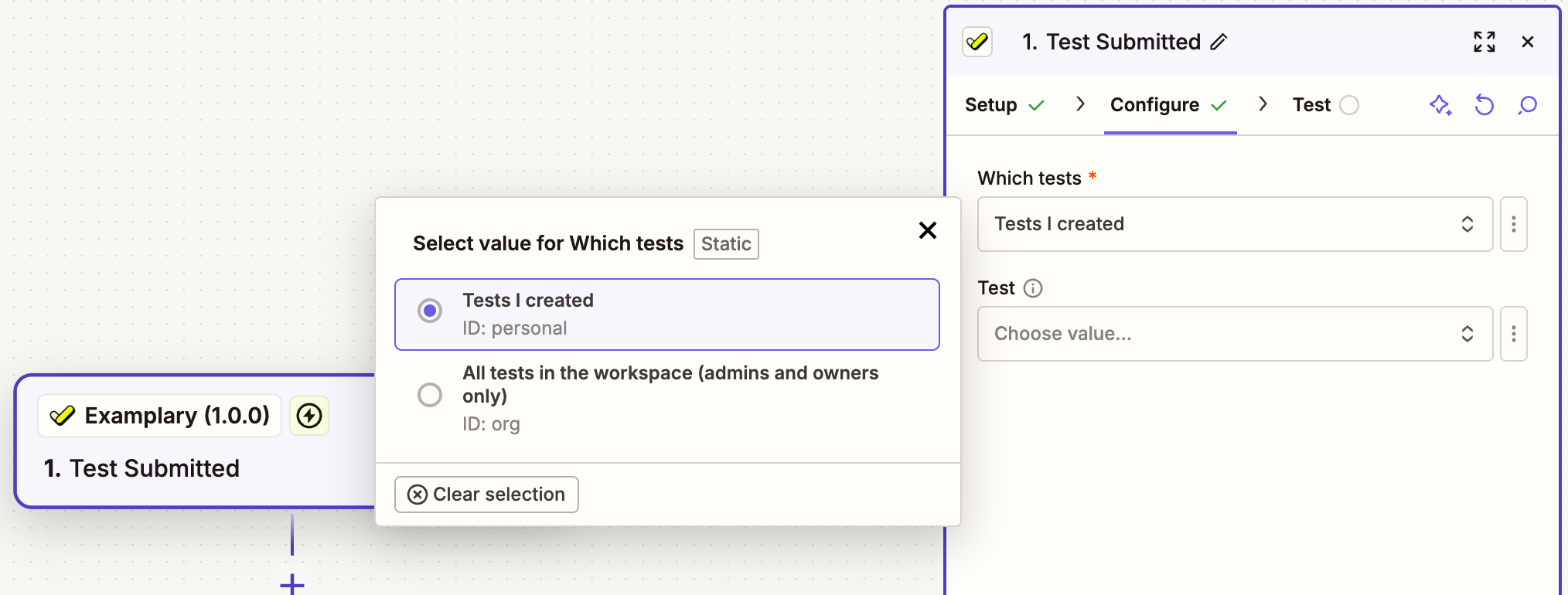
Each trigger asks Which tests it should run for: Tests I created, or All tests in the workspace (admins and owners only). You can also pick a single Test, so the Zap only runs for that one. For Test Questions Generated and Test Imported, Tests I created means generations and imports you started yourself.
Example: keep results in a spreadsheet
Collect every submission in a Google Sheet, for example to combine results from several tests or share them with a colleague.
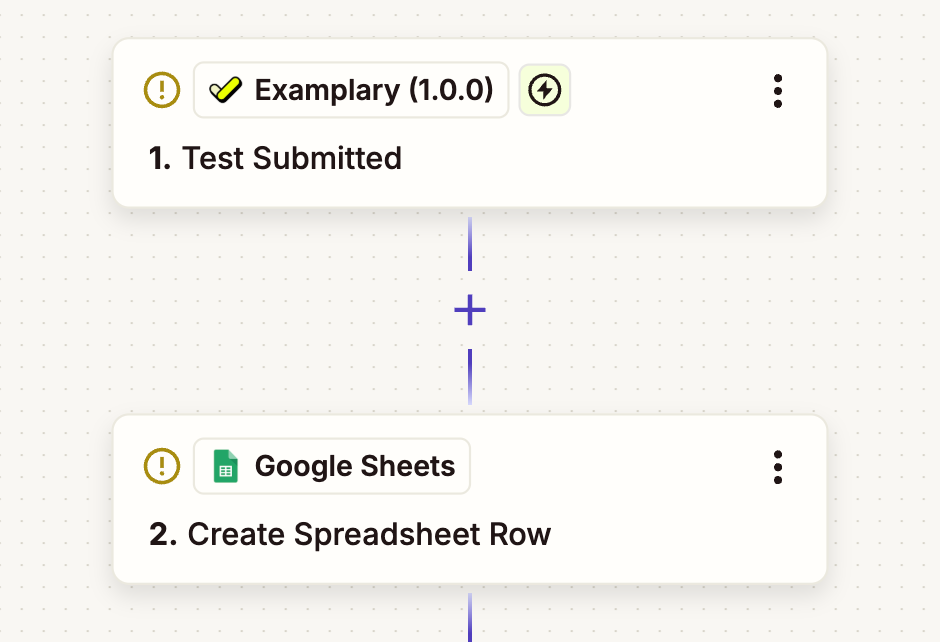
- Create a Zap with Examplary → Test Submitted as the trigger.
- Add Google Sheets → Create Spreadsheet Row as the action.
- Map the columns of your sheet to the submission, such as Student Name, Points, Max Points and Completed At.
- Click Publish.
Grade is only filled in when every answer is already graded, as in a test with only multiple choice questions. For open questions, use Submission Graded by AI as the trigger: Points then include the scores the AI suggests. Zapier isn't told when you review them, so you still check and publish the results in Examplary; see Reviewing answers and publishing results.
Example: send students a sign-in link
Let students sign up through a form and get a link that takes them straight into a test or practice space, without a password or code. This Zap has three steps, so it needs a paid Zapier plan.
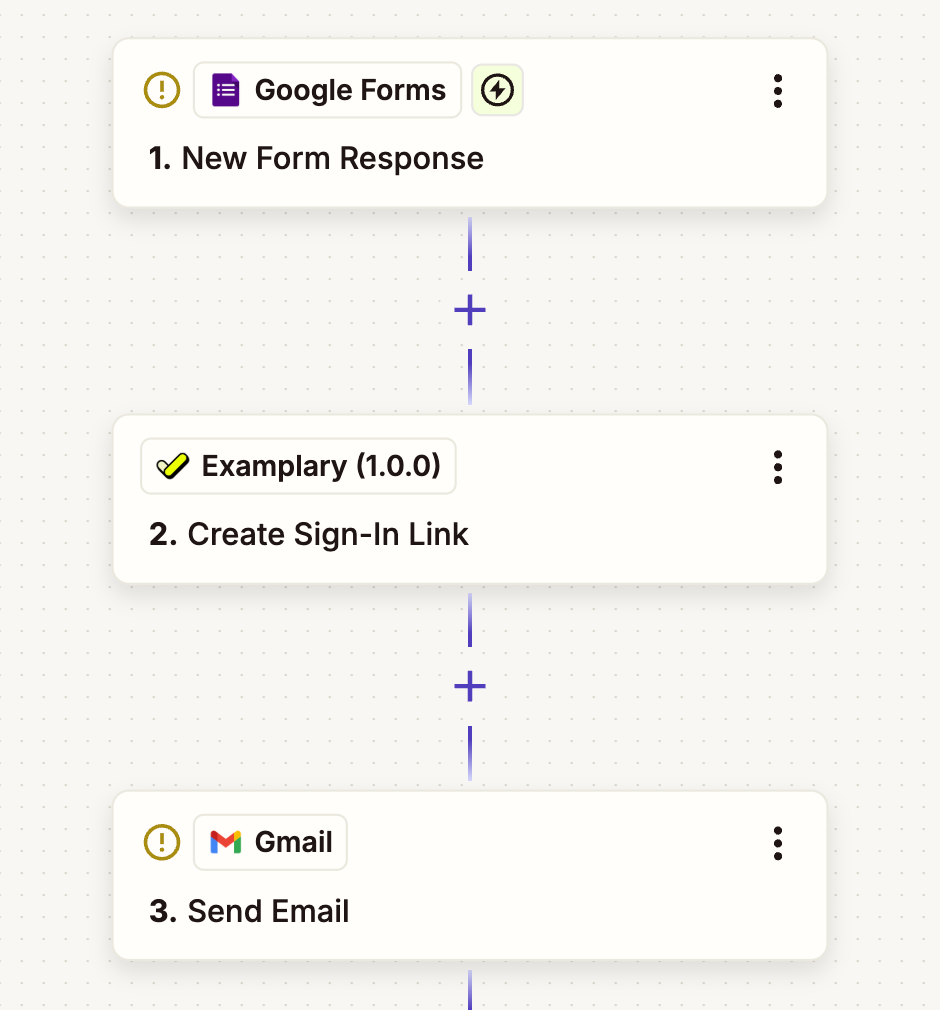
- Create a Zap with Google Forms → New Form Response as the trigger. Your form asks for the student's email address and name.
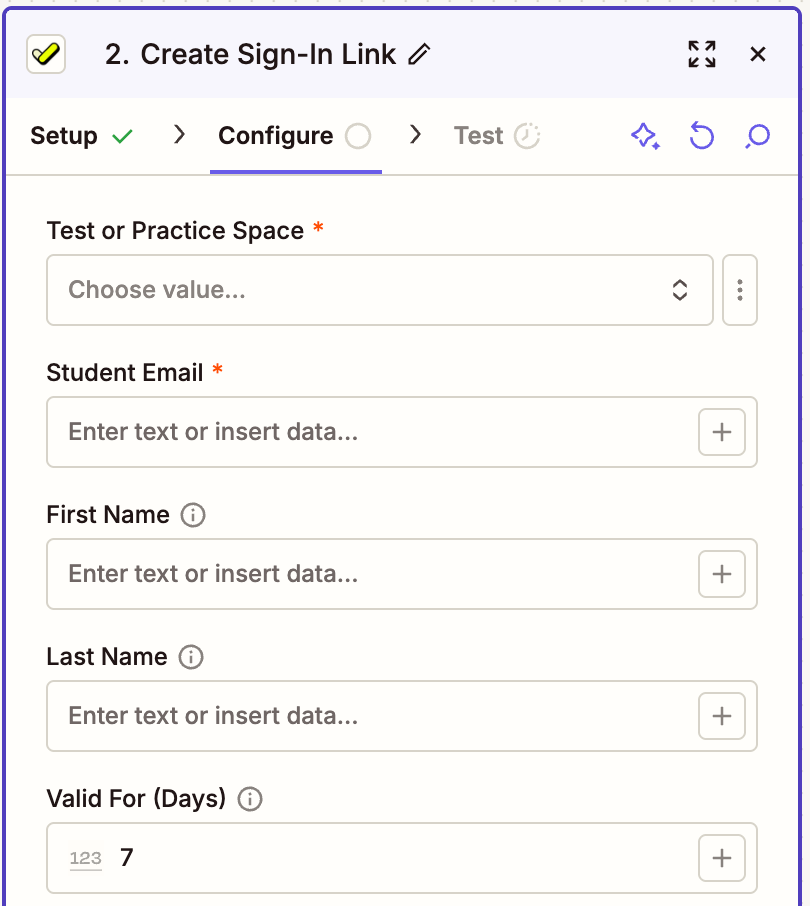
- Add Examplary → Create Sign-In Link. Choose a Test or Practice Space that you own or manage, and map Student Email, First Name and Last Name to the form's answers.
- Add Gmail → Send Email, with the Sign-in Link from the previous step in the message.
- Click Publish.
A student who isn't in your workspace yet is added as a student, with the name from the form, and gets access to the test or practice space. Valid For (Days) sets how long the link works: 7 days unless you change it, at most 30.
Anyone who opens the link is signed in as that student. Send it only to the student's own email address. Each link works once: after that, the student signs in the usual way.
Prefer to let Examplary send the email? Use Invite Student instead. With Send Invitation Email on, Examplary emails the student a link that works once and for 14 days.
Troubleshooting
Open the invite link and accept the invite first, while signed in to the Zapier account you build Zaps with.
With Tests I created, the submission triggers only run for tests you created. An admin or owner can choose All tests in the workspace (admins and owners only).
Your workspace has turned off Allow teachers to invite new users under Security & compliance, so teachers can't add people who aren't in the workspace yet. For Create User with a teacher or admin, the workspace may also be out of seats. Ask an admin.
That email address is already in your workspace. Use Invite Student or Create Sign-In Link instead: they use the existing student.
That address belongs to a teacher or admin in your workspace. Invitations and sign-in links are only for students.
You need to own or manage the test or practice space. Ask its owner to make you a manager, or pick another one.
Sign-in links aren't available when your workspace requires single sign-on (SSO). Students sign in through your school's login instead.
The sign-in link was already used, or it has expired. Run the Zap again for that student, or let them sign in the usual way.