By default, teachers and administrators sign in to Examplary with an email address and password, and students receive a code or link by email. Instead of that, you can point your whole workspace at an identity provider, so everyone signs in with the account they already use elsewhere.
Single sign-on is available on the Examplary for organizations plan. If you're interested in upgrading, contact us via hi@examplary.ai.
Choosing a sign-in method
Go to Account → Access & domains and find the Single sign-on section. You have three options:
| Method | Best for | What you'll need |
|---|---|---|
| Schools on Google Workspace | Your email domain | |
| Entree Federatie | Dutch schools already using Entree | Your BRIN number |
| Custom OIDC provider | Microsoft Entra ID, Okta, or any OpenID Connect IdP | Issuer URL, client ID + secret |
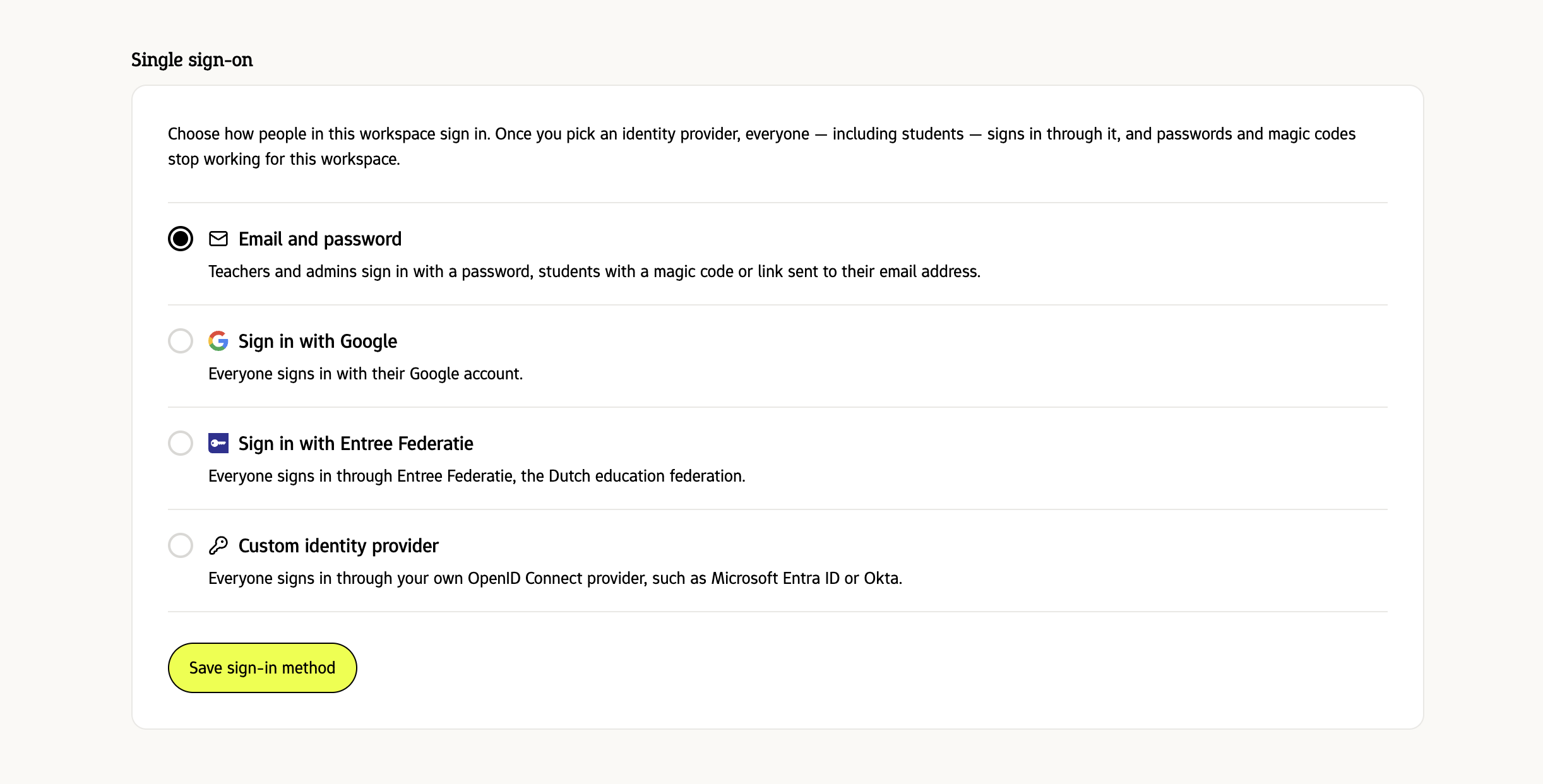
Once you pick an identity provider, everyone in the workspace signs in through it — students included. Passwords and emailed codes stop working for your workspace, so make sure your students can reach the provider before you switch it on.
Sign in with Google
Choose Sign in with Google and, optionally, enter your school's email domain (for example myschool.edu).
The domain does two things: only Google accounts on that domain can sign in, and anyone new signing in is added to your workspace automatically.
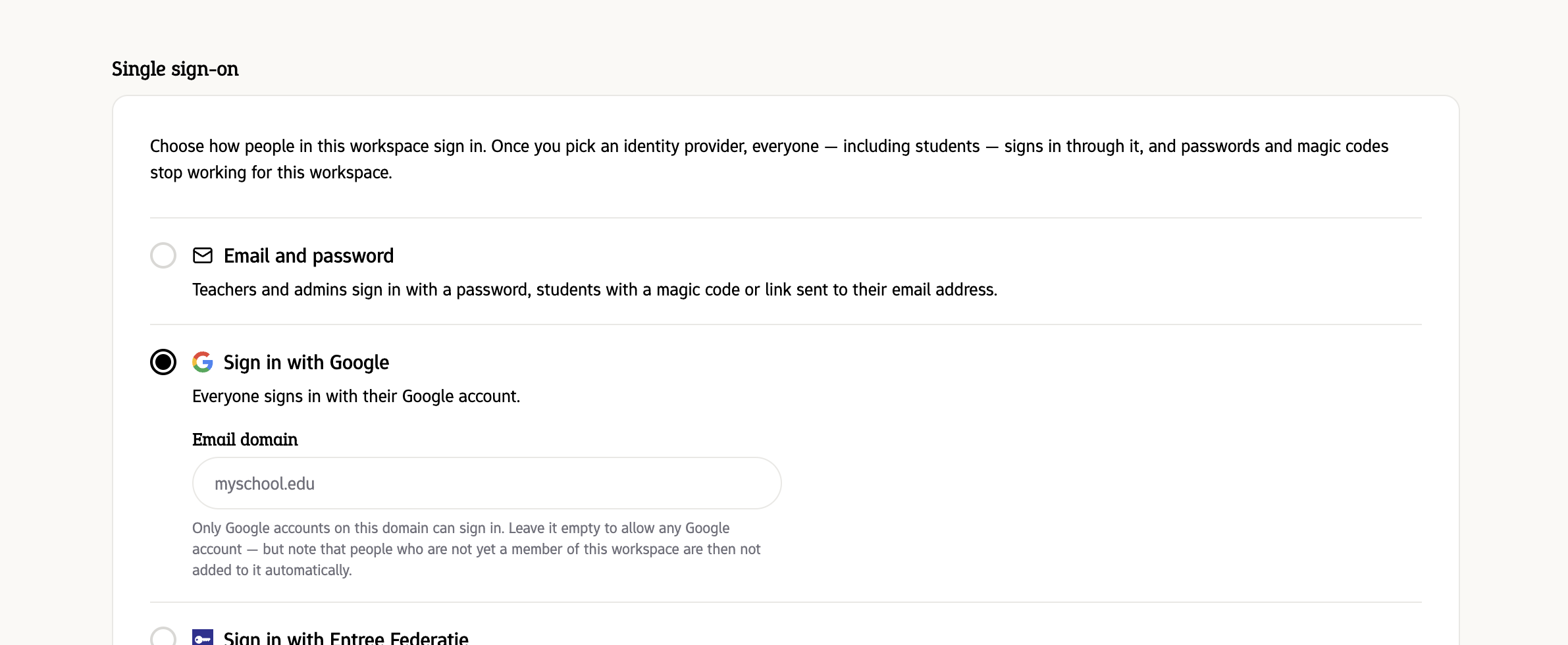
Leave the domain empty and any Google account can sign in — but people who aren't already members of your workspace won't be added to it. They'll land in a personal workspace of their own instead. If you want new colleagues and students to join automatically, set the domain.
Sign in with Entree Federatie
Choose Sign in with Entree Federatie and enter your school's BRIN number (for example 01AB).
You'll also need to activate Examplary as a service for your school in the Entree dashboard — see Integrating with Entree Federatie for the full walkthrough, including the roles and groups Entree provides.
Custom OIDC provider
Any identity provider that speaks OpenID Connect will work, including Microsoft Entra ID, Okta, Google Cloud Identity, and Keycloak.
1. Create an application in your identity provider
In your provider's admin console, create a new OpenID Connect (or "web") application and set its redirect URI to the address shown on the Examplary setup screen:
https://login.examplary.ai/oauth2/idpresponseMake sure the application is allowed to request the openid, profile and email scopes.
2. Enter the details in Examplary
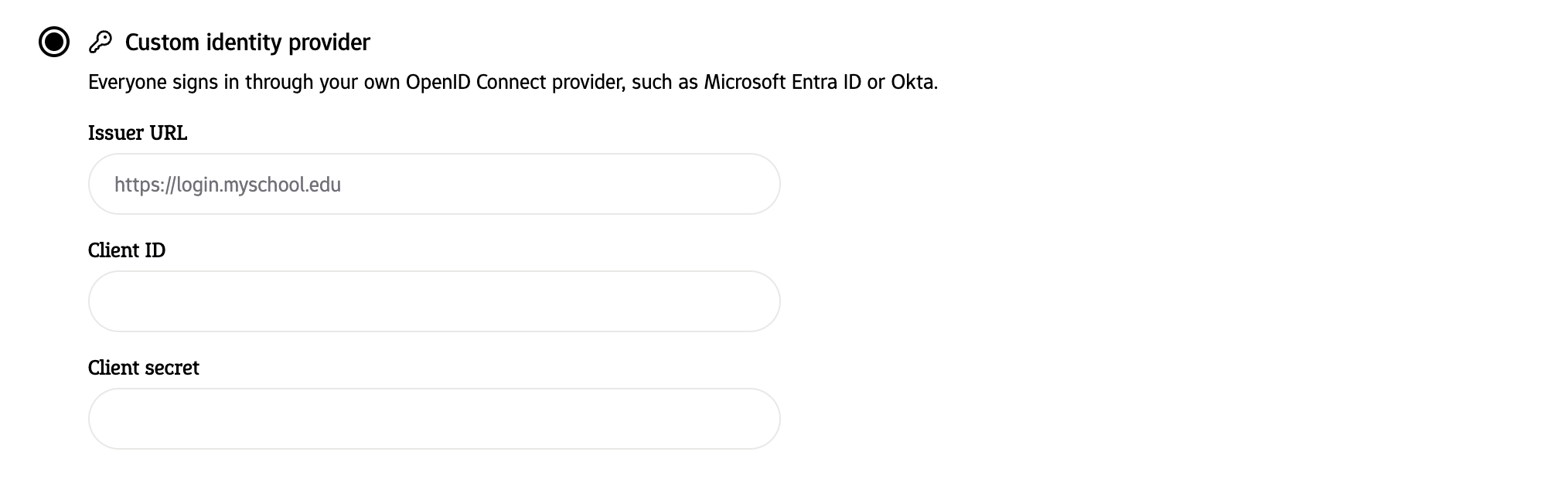
Copy three values from your provider back into Examplary:
- Issuer URL — the base URL of your provider, for example
https://login.microsoftonline.com/<tenant-id>/v2.0. This is where we look up the provider's configuration, so it must be the issuer, not the login page. - Client ID — the identifier of the application you just created.
- Client secret — the secret generated alongside it. It's stored encrypted and never shown again, so keep a copy in your own password manager.
Click Save sign-in method and confirm. Examplary registers your provider and everyone in the workspace moves onto it.
Open your workspace's sign-in link in a private browsing window and complete a full sign-in before telling everyone else. That way, if something's wrong with the issuer URL or secret, your normal session is still open to fix it.
3. Optional: send roles and groups
If your identity provider includes any of the following claims in the token it issues, Examplary applies them automatically. None of them are required — leave them out and everyone signs in as a teacher with no groups.
| Claim | What it does |
|---|---|
role | Sets the user's role in Examplary. Applied when the account is first created. |
groups | Group names. Groups are created as needed, and membership is refreshed on every sign-in. |
group_ids | Existing Examplary group IDs, if you'd rather match on those. Takes precedence over groups. |
The role claim accepts these values:
| Claim value | Examplary role |
|---|---|
admin, manager | administrator |
teacher, employee, staff | teacher |
student, member, participant | student |
Anything else is ignored, and the user becomes a teacher. Matching is not case-sensitive, so Teacher works as well as teacher.
For groups and group_ids, send either a comma-separated list (Class 3A, Class 4B) or a JSON array (["Class 3A", "Class 4B"]) — most providers do the latter by default.
A user's role is applied when their Examplary account is first created. Change someone's role in your directory afterwards and it won't move them in Examplary — an administrator can adjust it under Account → Members. Group membership, by contrast, is refreshed every time they sign in.
Sending people straight to the sign-in screen
Once single sign-on is on, opening your workspace's own URL takes people directly to your identity provider. Share whichever of these applies:
- If you use a custom domain, share that domain.
- Otherwise, share
https://app.examplary.ai/org_12345, replacingorg_12345with your organization ID (you'll find it in the URL when you're signed in).
If you get locked out
A wrong issuer URL or an expired client secret can leave nobody able to sign in. There's a way back in that doesn't need our help.
A workspace owner can request a one-time code at:
https://app.examplary.ai/org_12345?recovery=1Replace org_12345 with your organization ID. The address is also shown in the Single sign-on section once it's switched on, so it's worth noting down somewhere before you need it.
Enter the owner's email address and we'll send a code that skips the identity provider once — long enough to correct the settings or switch back to email and password.
The code is valid for 15 minutes and signs you in for an hour. It only works for workspace owners, and every administrator in the workspace is emailed whenever one is requested — so nobody can quietly bypass your sign-in settings.
If the owner has also lost access to their mailbox, email Examplary support and we'll help you back in.
Switching back
Choose Email and password in the Single sign-on section and save. Everyone goes back to signing in with a password, and students to codes and links by email.
Accounts created through your identity provider stay exactly as they are, along with everything they own.
Someone who previously signed in with a password gets a separate Examplary account the first time they use single sign-on, because their identity provider issues a new identity for them. Tests and other work on the old account don't carry across. If you have colleagues with existing accounts, contact Examplary support before switching so we can advise on the best approach.